
PitchOps Manuals

Mobile workflows for real pitch operations.

A guided visual manual for teams using the Pitch Operations module on phones: what to tap, what each area records and how daily work becomes reliable operational history.

Getting started

Start from the mobile operations dashboard

Use the dashboard and 48-hour weather forecast before logging work on site.

1

Home dashboard

This is the starting point for Pitch Operations. It gives the mobile user the main entry points before work is logged.

Workflow
  • Use the visible tiles and cards as shortcuts into the main workflows.
  • The 48-hour weather forecast appears after the user allows browser location access.
  • Scroll the forecast chips horizontally to see later hours.
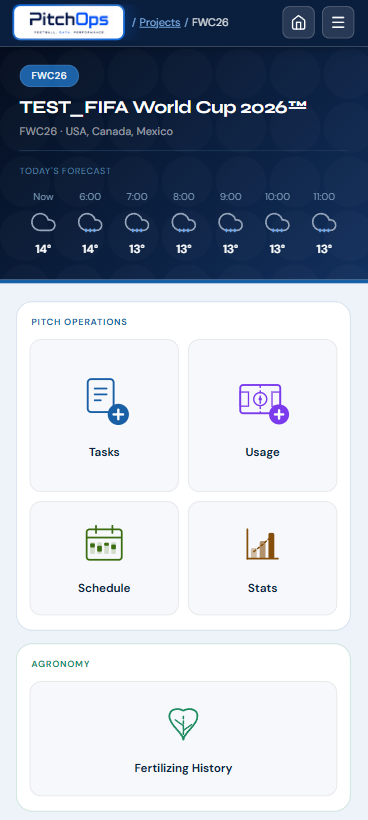
PitchOps mobile home dashboard
Visual guide
1

Main entry tiles

Open the operational areas from the dashboard instead of hunting through menus.

2

48-hour weather

Swipe the forecast cards sideways to check later conditions.

3

Mobile menu

Use the header controls to return home or open the mobile menu.
Tasks

Record maintenance and operational work

Tasks capture what was done, who worked on it, current conditions and photo evidence.

2

Log a task

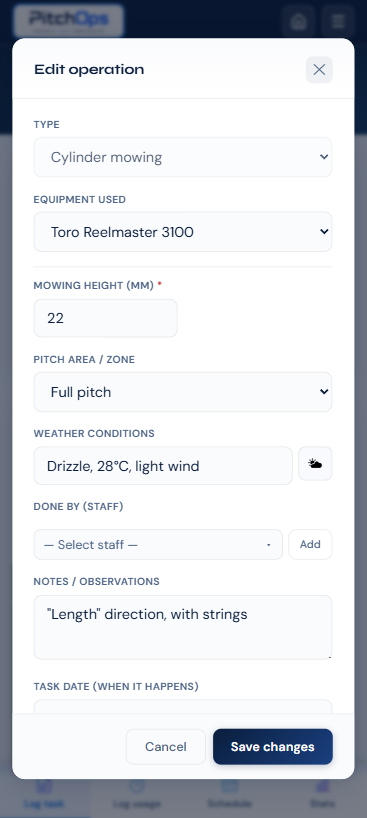
This modal opens after tapping Log task. Use it for maintenance or operational work completed or planned on the pitch.

Workflow
  • Fill in task type, equipment, weather, staff, notes, date, status and photos.
  • The cloud button is useful because it fetches current weather data for the task.
  • Use status to show whether the task is planned, in progress or completed.
  • Add notes while the work context is still fresh.
PitchOps mobile task form modal
Visual guide
1

Task details

Select the type of maintenance or operational work being recorded.

2

Cloud weather button

Fetch current weather so the task record carries the right site context.

3

Notes and timing

Use notes and date or time fields to capture context before saving.

3

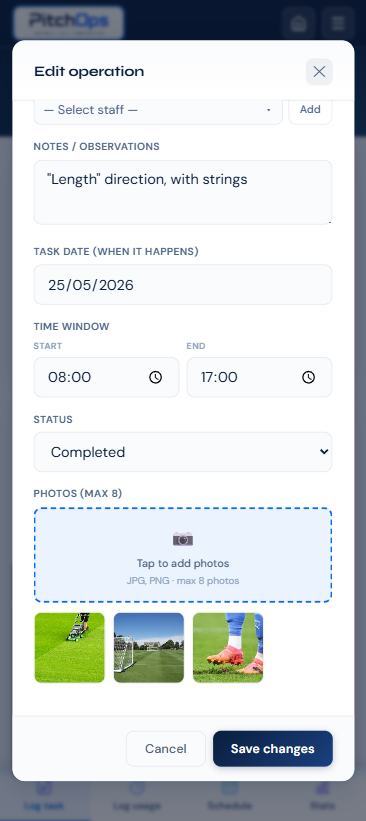
Add task photos

Tasks can include photos, turning daily work into a clearer operational record for later review.

Workflow
  • Add photos where the form provides the photo upload area.
  • Use photos to document completed work, surface condition or visible issues.
  • Photos stay connected to the task instead of disappearing into chat threads.
PitchOps mobile task photos area
Visual guide
1

Photo area

Tap here to add images to the task record.

2

Operational evidence

Photos make the task easier to verify during reviews.

4

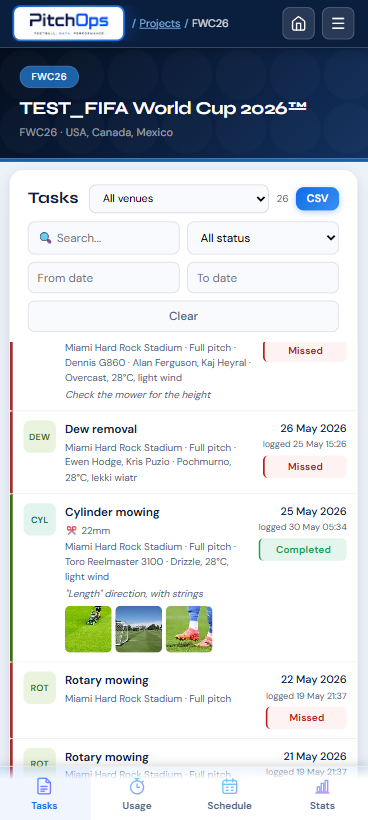
Task list and controls

After saving a task, the task list becomes the practical place to search, filter and continue work through the mobile tabs.

Workflow
  • Use search and filters to narrow the task list.
  • CSV export helps move task history into a review or reporting workflow.
  • Status and photo indicators show whether records carry completion and evidence.
  • Continue through the bottom tab bar after saving; it is the main mobile navigation path.
PitchOps mobile task list controls
Visual guide
1

Search and filters

Find the right tasks quickly when the list grows.

2

Status and photos

Check what is complete and which entries include photo evidence.

3

Bottom tabs

Move between dashboard, tasks, usage, schedule and other areas from here.

Usage

Record pitch load from football activity

Usage entries describe training, match, warm-up or other load on the pitch.

5

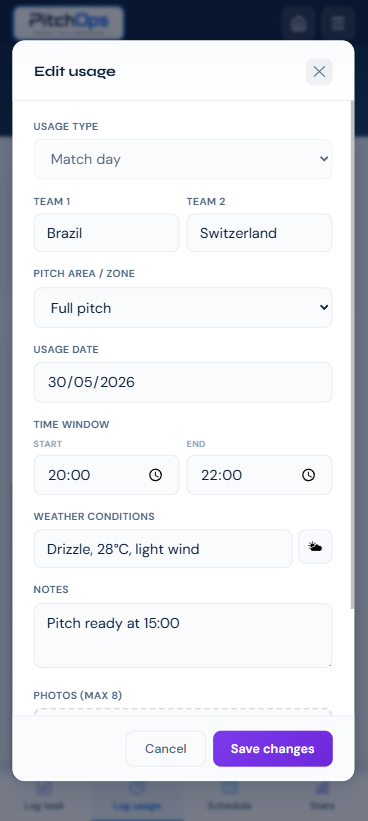
Log usage

This modal opens after tapping Log usage. Use it to record pitch load from training, matches, warm-ups or other use.

Workflow
  • Task means maintenance or operational work on the pitch.
  • Usage means football load placed on the pitch by training, match, warm-up or other activity.
  • Record the usage type, date, time, venue or pitch context and useful notes.
  • Use consistent entries so future statistics and schedules stay reliable.
PitchOps mobile usage form modal
Visual guide
1

Usage type

Choose what kind of pitch activity is being recorded.

2

Date and time

Place the load accurately on the operational timeline.

3

Notes

Add context that helps explain unusual load or surface impact.

6

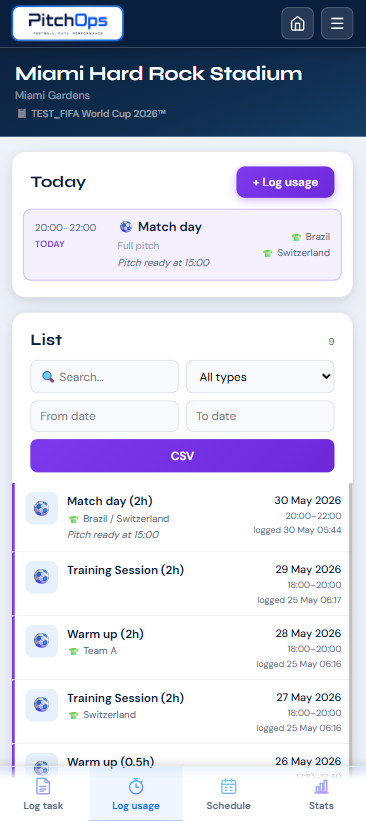
Usage list and controls

The usage list helps the team review today, upcoming sessions and historical entries after records are saved.

Workflow
  • Use Today, Upcoming and List views when they are available to switch the planning context.
  • Search, filters, date controls and CSV export help manage longer usage histories.
  • Use the bottom tab bar as the main path to continue through the mobile module.
PitchOps mobile usage list controls
Visual guide
1

View controls

Move between today, upcoming and list-based usage views.

2

Search, dates and export

Filter the history or export records when you need a review file.

3

Bottom tabs

Keep moving through the mobile module from the persistent tab bar.

Schedule

Plan and adjust work across week and month views

The schedule connects planned tasks and pitch usage so the team can adapt quickly.

7

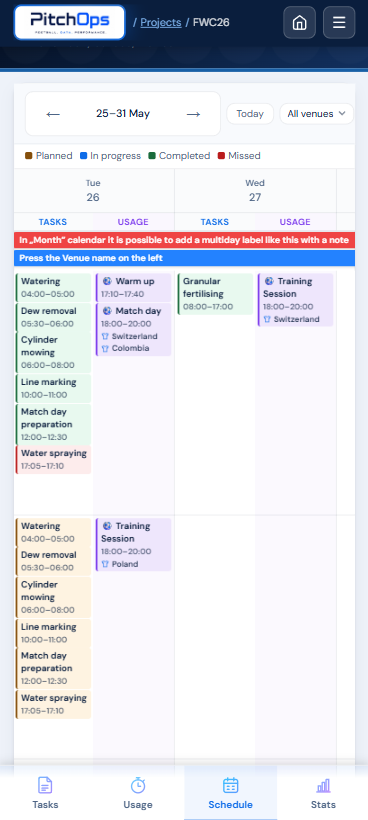
Weekly schedule

The weekly schedule shows planned operational work and pitch usage in the same planning rhythm.

Workflow
  • Read the week from day to day and check where tasks and usage sit.
  • Use the view to understand pressure around training, match windows and maintenance work.
  • Tasks and usage appear together so planning decisions stay connected.
PitchOps mobile weekly schedule
Visual guide
1

Week window

Check the active days and move through the planning week with the date range and arrows.

2

Schedule chips

Tasks and usage appear as practical plan items visible directly in the weekly grid.

3

Adding entries in an empty slot

Tap a free area in the selected day to quickly add a new task or usage without leaving the schedule.

8

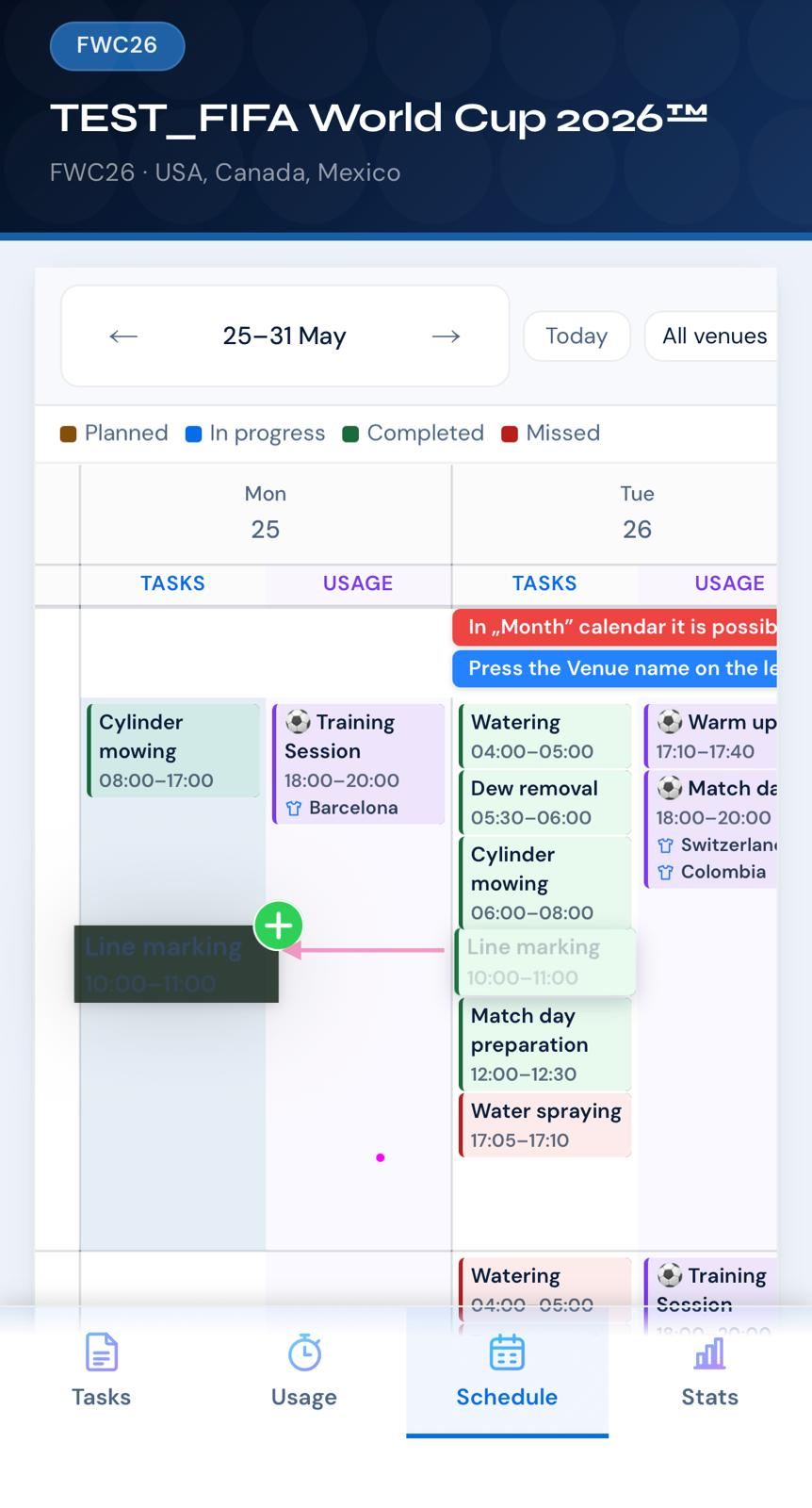
Copy or move schedule chips

Copying and moving schedule chips is done with drag & drop, which helps adjust repeated or shifted operational items without recreating entries.

Workflow
  • Use drag & drop to copy an item when similar work or usage needs to be repeated.
  • Use drag & drop to move an item when timing changes but the entry itself should stay the same.
  • This keeps plan adjustments quick during busy operational weeks.
PitchOps mobile schedule chip copy and move controls
Visual guide
1

Chip action

Use drag & drop to copy or move the selected schedule entry.

2

Fast adjustment

Shift plans without rebuilding the record from zero.

9

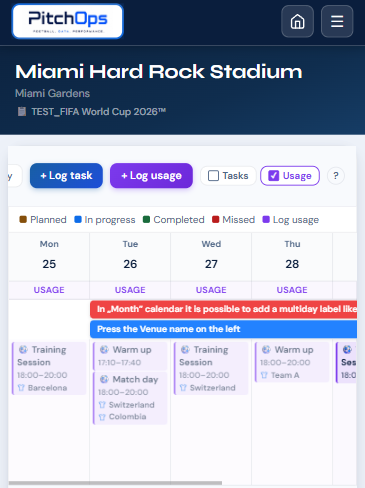
Weekly view filters

In the weekly schedule view, choose whether to display Tasks, Usage or All records.

Workflow
  • Choose Tasks when maintenance planning is the focus.
  • Choose Usage when football load is the focus.
  • Choose All when you need the full operational picture.
PitchOps mobile weekly schedule filter controls
Visual guide
1

Tasks, Usage, All

This switch controls which schedule records are visible.

2

Cleaner reading

Filter the week when the schedule becomes busy.

10

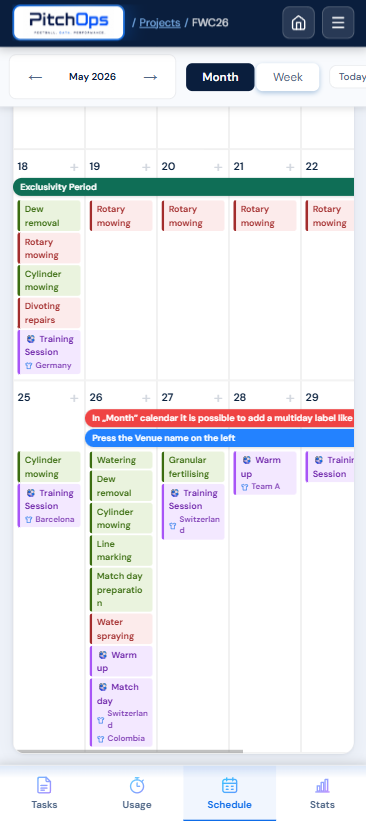
Monthly schedule

The monthly schedule gives a higher-level view across the month for planning and review.

Workflow
  • Use the month overview to see wider maintenance and usage rhythm.
  • Look for busy periods, open windows and repeated pitch demand.
  • Open specific dates when you need more detail.
PitchOps mobile monthly schedule
Visual guide
1

Month grid

Scan the month for pressure points and open windows.

2

Date entries

Use visible markers to identify days with planned work or usage.

11

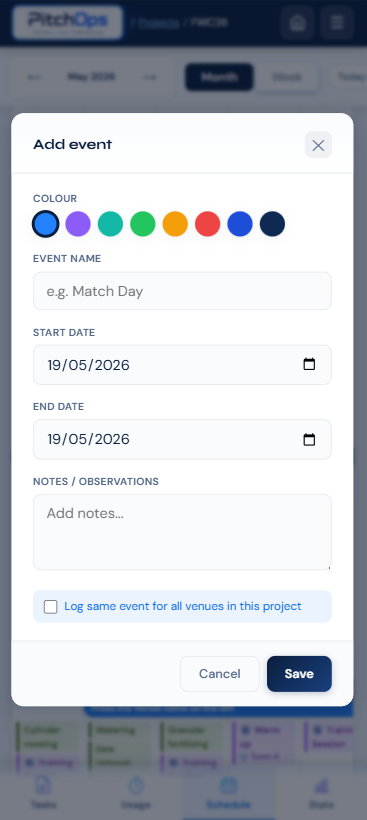
Add a multiday event

This modal opens after pressing the plus button in the date window. Use it for events spanning more than one day.

Workflow
  • Set the event title or type so the plan is easy to read later.
  • Choose start and end dates for the multiday window.
  • Add notes or context when the event affects access, workload or planning.
PitchOps mobile multiday event modal
Visual guide
1

Event setup

Start with the event colour and name after opening the multiday modal.

2

Start and end

Use date fields to define the full event range.

3

Event context

Add useful planning notes before saving.

Stats

Summarize operations and export reporting views

Statistics turn operational records into totals, charts and review-ready evidence.

12

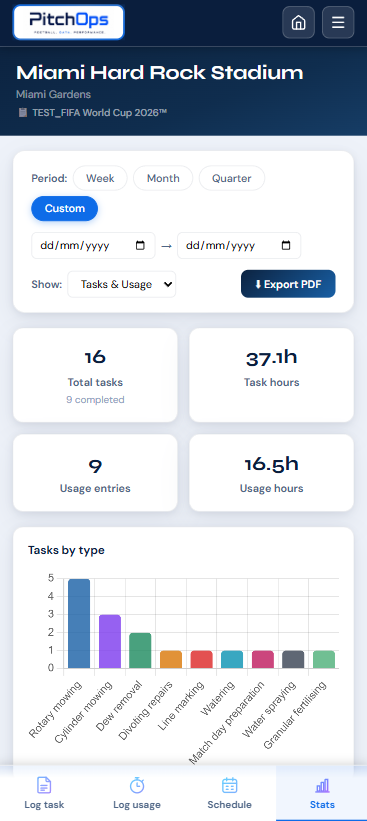
Stats overview

Use this single screen to summarize operations with KPI cards, filters, charts and PDF export.

Workflow
  • KPI cards summarize the most important operational totals.
  • Time range and filters decide which records are included.
  • Charts reveal patterns across work, usage or other operational categories.
  • Export PDF when the view needs to become a shareable report.
PitchOps mobile statistics overview
Visual guide
1

KPI cards

Read totals first to understand the period quickly.

2

Range and filters

Change the period before reviewing charts or exporting.

3

Charts and PDF

Use charts for patterns and PDF export for reporting.

Agronomy

Track fertilizing history and nutrient records

Agronomy views help the team review application history and nutrient trends.

13

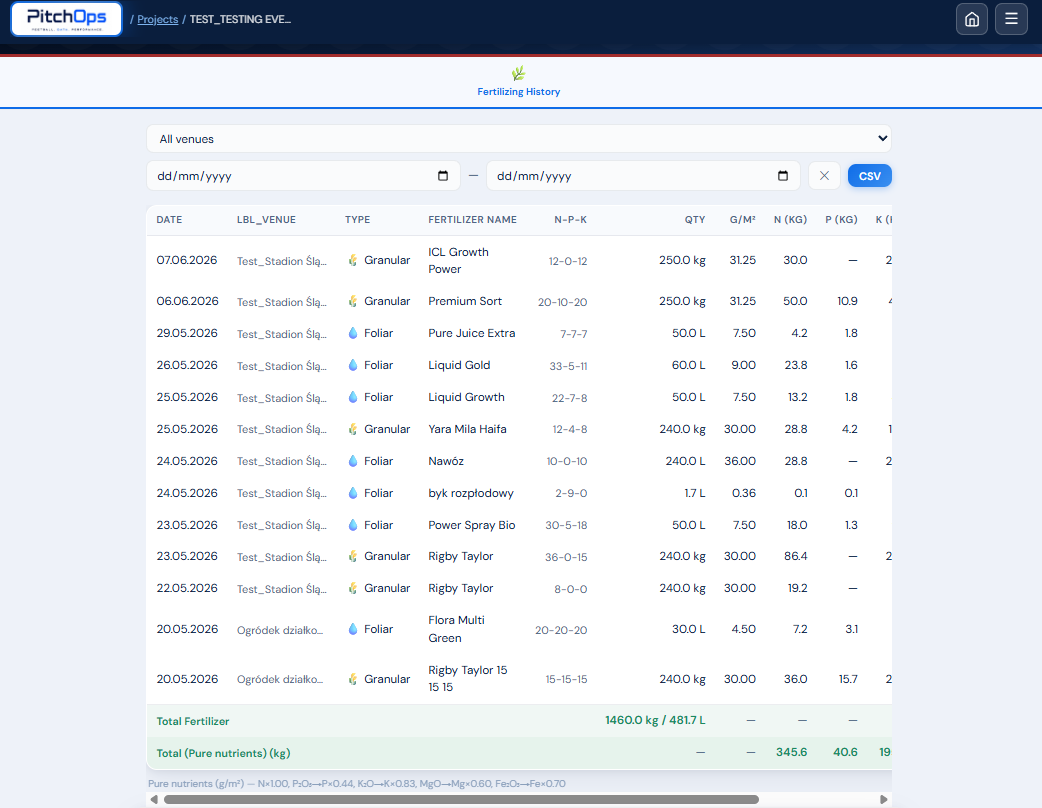
Agronomy overview

The agronomy area is for fertilizing history and nutrient records connected to the operational timeline.

Workflow
  • Use the main table or list to review fertilizer history.
  • Filters help narrow records by date, venue, product or visible criteria.
  • The view supports traceability of applications and nutrient records.
PitchOps mobile agronomy overview
Visual guide
1

Fertilizing history

Review applications in a structured operational list.

2

Filters

Narrow the history before reviewing or reporting.

14

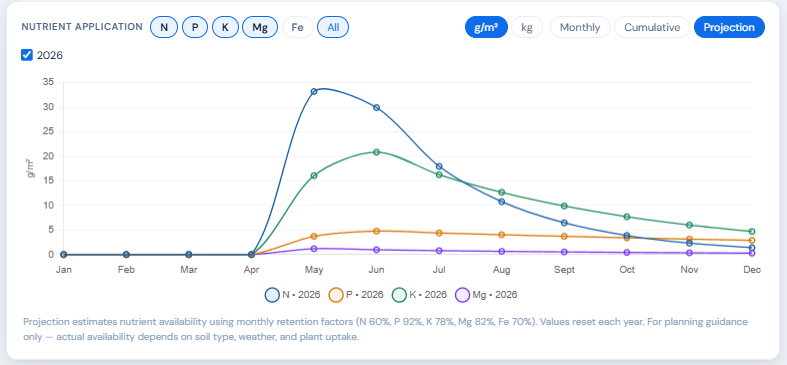
Agronomy chart view

The chart view helps analyze nutrient history and visible trends without claiming automatic recommendations.

Workflow
  • Switch between N, P, K and other visible nutrient views when available.
  • Use chart trends to understand recorded nutrient history over time.
  • Treat the chart as analysis support, not as an automatic agronomic recommendation.
PitchOps mobile agronomy nutrient chart
Visual guide
1

Nutrient switch

Move between N, P, K or other visible nutrient categories.

2

Trend chart

Read the line or bars as recorded nutrient history over time.

Settings

Keep mobile reporting options ready for the team

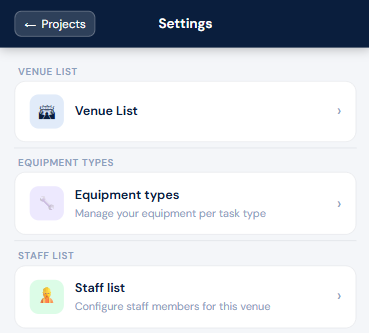
Settings define the equipment, staff and venue token links used in daily reporting.

15

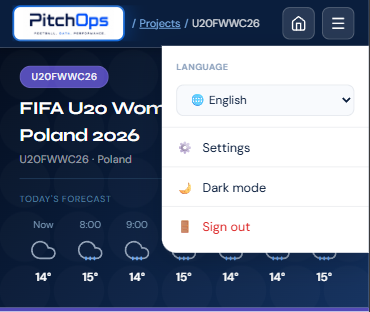
Mobile menu navigation

The mobile menu is useful when the user needs a compact route to less frequent areas of the module.

Workflow
  • Use the mobile menu for secondary navigation when the tab bar is not enough.
  • Keep the daily workflow anchored in the dashboard, tabs and schedule.
PitchOps mobile menu navigation
Visual guide
1

Menu entry

Open the menu to reach supporting areas without leaving mobile context.

2

Navigation list

Choose the destination that matches the work you need to do next.

Access and token links

Token access is for day-to-day reporting, not system administration.

Token users should be treated as practical mobile reporters. They can record work and update selected entries within clear limits.